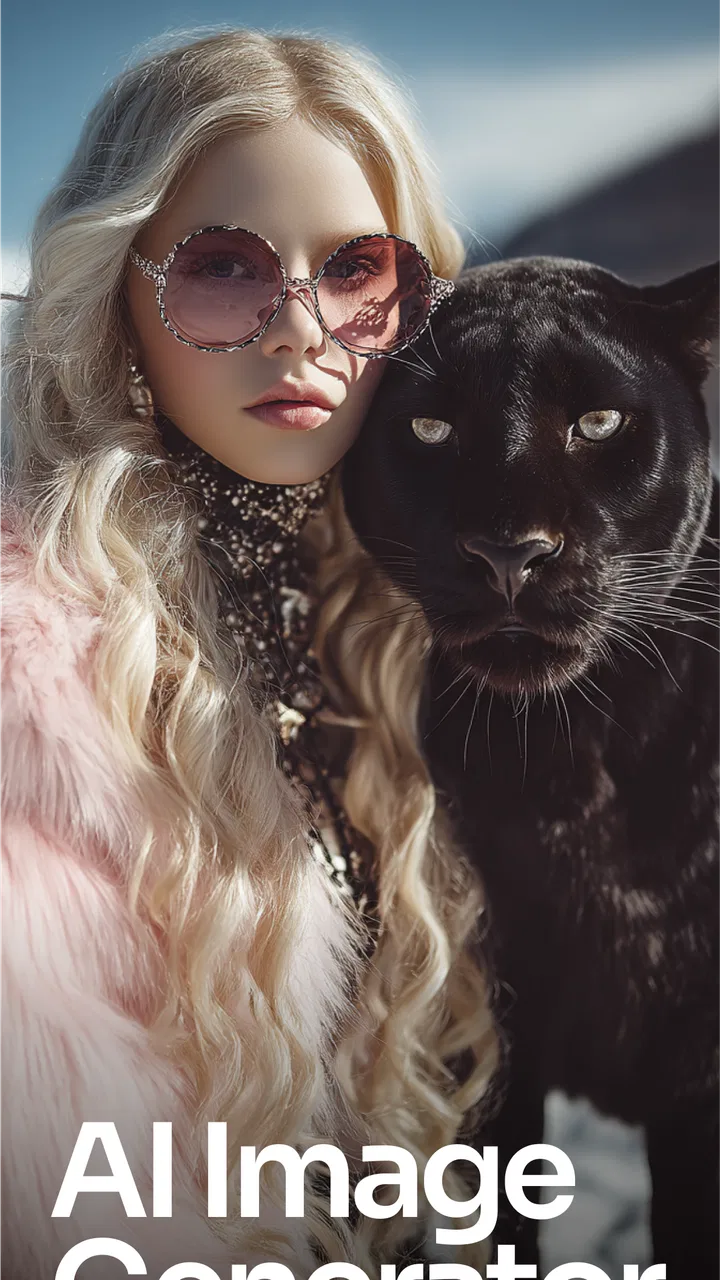
AI Image Generator: ImagineArt
- 4.2
- Rating
- 10.00M
- Installs
- Free
- Price

 Analysis by App-foxy
If you are curious about making images with artificial intelligence but do not want to begin with a complicated design program, ImagineArt is an approachable place to start. I tried it as an art and design app, and my first impression was that it is built around turning a written idea into something visual, then helping you push that idea toward logos, tattoo concepts, illustrations, and other creative projects. It feels more immediate than opening a blank canvas, although it also asks you to accept the unpredictable nature of AI-generated artwork.
The app comes from ImagineArt and is free to install, with optional purchases ranging from $5.99 to $799.99 per item. That price range is worth noticing before you explore too far, because the basic entry point is easy, while the broader paid structure may matter if you generate images frequently. It is rated for Teen users, and the current version is 7.4.4, supporting devices running Android 8.0 or later. On iOS, the exact installation experience can vary by device and store availability, but the creative idea remains the same: describe what you want and use the result as a starting point.
What to expect when you open ImagineArt
I would not approach this as a replacement for a full professional design suite. It is better understood as a fast idea generator with editing and design uses around it. If I need a mood board direction, a rough visual for a social post, a tattoo concept, or several possible logo styles, I can get moving without drawing every element myself. The strongest part is the speed of exploration: one prompt can lead to a direction I would not have considered on my own.
You May Also Like

 Blood Strike: 2.5 Anniversary
Blood Strike’s Loadouts Turn Every Drop Into a Tactical Gamble
A close look at Blood Strike’s custom loadouts: how fast access to signature weapons reshapes its battle royale rhythm, rewards preparation, and narrows the gap between fights.

 Pandora - Music & Podcasts
Pandora’s Music Is Easy to Start, but Harder to Recover
Pandora’s strength is its low-effort path from a seed to a station. Its weak spot is how much confidence it asks you to place in connection, setup, and quiet recovery.

 8 Ball Pool
 Is Built on Rivalries, Rematches, and Routine
A close look at the rivalries, rematches, shared routines, and unanswered safety questions that turn a quick pool match into a persistent mobile community.

 Samsung Music
’s Quiet Strength Is Playing What You Already Own
Its reach comes less from spectacle than from dependable access to a personal library. That simplicity is both the app’s strongest retention engine and its ceiling.

 AccuWeather: Weather Radar
AccuWeather Review: A Quick, Clear Forecast for Everyday Decisions
For everyday plans, the best forecast is the one you can understand quickly. AccuWeather makes rain timing, radar, and local conditions easy to act on, with a few trade-offs.

 Hill Climb Racing
Why Hill Climb Racing Still Turns Crashes Into One More Run
A tiny car, a bumpy hill and one more upgrade: Hill Climb Racing keeps resurfacing because its simple chaos makes every near-miss feel personal.
More From Our News Desk



That speed comes with a trade-off. AI art is not a precise drawing assistant in the traditional sense. A prompt can communicate the subject, atmosphere, color family, and general style, but the output may still interpret small details in unexpected ways. Text inside an image, hands, repeated objects, and exact brand elements are areas where I would inspect the result carefully rather than assuming it is ready to publish.
ImagineArt has attracted a substantial audience, with over 10 million installs and an average rating of 4.2 from around 407,000 ratings. Those figures suggest that the app works for many casual creators, but they should not be read as a guarantee that every generated image will match a first prompt. My own advice is to judge it by how useful its results are as working material, not by whether it produces a perfect final design every time.
Who will enjoy it most
This app makes the most sense for someone who thinks visually but does not necessarily have illustration skills. A small business owner can use it to explore a visual identity before hiring a designer. A student can turn a written concept into a presentation image. Someone planning a tattoo can compare several compositions before taking a refined idea to a tattoo artist. I also see value for social media users who need an original background or themed image instead of relying on the same stock photos everyone else uses.
It is less suitable if your work depends on exact typography, strict brand guidelines, pixel-level control, or repeatable characters across many images. In those situations, a conventional editor or a vector design tool will usually give you more dependable control. I would also skip it if you want a completely manual drawing experience. The appeal here is collaboration with a generator, not the feeling of building every line yourself.
Setting up without getting lost
The first useful step is to arrive with a small visual goal rather than a vague wish to “make AI art.” For example, I might decide that I want a dark botanical tattoo concept, a friendly mascot for a local bakery, or a cinematic background for a phone wallpaper. A narrow goal gives me something concrete to evaluate and prevents the first session from becoming a long scroll through random possibilities.
After installing the app, I would begin by looking for the image-generation workflow and keeping the first prompt short. A good starting prompt can include the subject, the intended mood, the main colors, and the type of composition. “Minimal black ink botanical tattoo, symmetrical composition, clean negative space” is more useful than a long paragraph filled with contradictory instructions. Once I see how the app interprets that direction, I can add detail in a second attempt.
The free entry point makes experimenting less intimidating, but I would still pay attention to any purchase prompts before confirming them. Because individual in-app purchases can be as low as $5.99 or as high as $799.99, a first-time user should understand which action is free and which action may involve a paid option. I would not rush through a credit, subscription, or upgrade screen simply because I wanted to see another result.
Another practical habit is to save or export a promising result as soon as it becomes useful. AI workflows often encourage repeated variations, and it is easy to lose track of the version that had the best composition. I like to keep a simple naming system outside the app, such as “bakery mascot round eyes” or “tattoo leaves thin lines,” so I can compare ideas without relying on memory.
How to write a prompt that gives you something usable
I get better results when I separate the prompt into visual decisions. First I state the subject, then the style, then the composition, and finally the mood or lighting. For a logo exploration, I might ask for a simple mountain symbol, flat geometric shapes, two-color contrast, and a centered composition. I would avoid asking the generator to include a finished business name in the artwork, because generated lettering can require correction later.
For tattoo planning, I would describe the body of the design rather than treating the image as a final stencil. Mentioning line weight, symmetry, negative space, and whether the concept should feel ornamental or illustrative gives the output a more useful direction. The important insight is that the result should be treated as a conversation starter with a professional tattoo artist. It is not a substitute for checking how the design will follow the shape and movement of a real body.
For an everyday image, such as a birthday invitation background, I would ask for an uncluttered area where text can be added later. This is one of the most useful prompt choices because it acknowledges what the generator is good at and what a separate editor does better. Instead of demanding a complete invitation, I can create the decorative foundation in ImagineArt and add the exact wording afterward in a tool designed for typography.
My first meaningful result
The first success I would aim for is not a flawless masterpiece. It is an image with a clear subject, a convincing mood, and enough structure to use as a draft. That standard makes the process much less frustrating. If I ask for a cozy illustrated café scene and receive a composition with the right atmosphere but imperfect small details, I may still have a useful reference for a post, a presentation, or a later design pass.
When an image is close but not quite right, I would change one major variable at a time. If I alter the subject, style, lighting, aspect of the composition, and color palette all at once, I will not know which instruction improved or damaged the result. A better workflow is to keep the successful parts of the prompt and adjust only the weak area. This is a simple technique, but it makes AI generation feel more deliberate and less like pressing a random button.
One non-obvious advantage is that the app can help me discover visual vocabulary. I may know that I want a “calm” design, but seeing several interpretations can help me decide whether calm means soft gradients, open space, pale colors, or a quieter subject. I can then use that discovery in another design tool or explain it more clearly to a human designer. In that sense, ImagineArt is useful even when its output is not the final asset.
I would also test an image at the size and context where I plan to use it. A picture that looks attractive full-screen may become muddy as a small profile image. A detailed tattoo concept may lose its clarity when reduced. A logo idea may look impressive on a dark background but fail on a plain document. Checking the result in its real setting is more valuable than judging it only inside the generation screen.
Where the editing side becomes important
The design-editor aspect matters because generation is only one stage of a practical project. I may need to crop an image, prepare a background, or adapt a concept for a different use. I would think of the generated picture as raw creative material and the editing tools as the place where I make it fit the job. That division of labor is healthier than expecting one prompt to solve composition, branding, text, and final export at once.
For a small business, my workflow would be to create several broad logo directions, select the one with the clearest silhouette, and then rebuild or refine the chosen idea in a conventional vector tool. This avoids a common mistake: treating an AI-generated logo as automatically suitable for signage, packaging, or trademark work. The app can help with exploration, but dependable brand production still benefits from editable shapes and carefully controlled typography.
For a social post, I would use the app to create an unusual visual theme, then place the actual message in a separate layout. This keeps the words readable and lets me adapt the same concept to different formats. For a personal project, I might be more relaxed and use the image directly, especially when the charm comes from its imperfections.
Common confusion and practical limits
The biggest source of confusion for new users is the difference between describing an idea and controlling an image. A prompt can guide the generator, but it does not work like a precise set of coordinates. If I need an object in an exact position, a specific number of repeated items, or lettering that must be correct, I should plan for manual editing afterward.
Another issue is consistency. If I am creating several images for the same story or campaign, the character, clothing, or visual identity may shift between outputs. I would therefore use the app for concept development, individual illustrations, or a collection with an intentionally varied look. For a tightly unified sequence, I would compare every image carefully and expect to make corrections elsewhere.
There is also a temptation to generate endlessly because each new variation feels like progress. In practice, too many options can slow me down. I find it more productive to choose a small set of promising directions, write down what works in each, and then make a focused second pass. The goal is not to collect hundreds of images; it is to reach one direction that solves the original problem.
Content rated Teen is another reason I would use judgment when sharing results with younger users or in public spaces. The rating gives a broad audience signal, but it does not remove the need to review generated material before posting it. I would inspect images for unintended details, confusing symbols, or visual elements that do not fit the audience or purpose.
Privacy and ownership questions also deserve common sense. I would avoid placing confidential business information, private documents, or personal images into any creative service unless I had read the current terms and understood how that material is handled. I would also check the intended usage requirements before using a generated image commercially. The app can help me make something, but responsibility for how I publish it remains with me.
How it compares with familiar alternatives
Compared with a traditional drawing app, ImagineArt is faster for generating an initial concept but gives me less direct control over every mark. A drawing app wins when I already know the exact shape I want or when the process of drawing is itself the point. ImagineArt wins when I have a verbal idea and need visual options quickly.
Compared with a standard template-based design app, it is more flexible for unusual subjects and imaginative scenes. Templates are often better for dependable layouts, readable text, invitations, business posts, and repeatable branding. I would combine the two rather than force one tool to do both jobs: generate an original visual direction here, then use a layout editor for the final communication.
Compared with a professional desktop graphics program, the app is easier to approach and more suitable for quick experiments, especially on a phone. The desktop option remains stronger for layers, vector paths, color management, precise retouching, and production-ready files. My choice would depend on whether I am still discovering the idea or preparing the final deliverable.
Who should install it and what to do next
ImagineArt is a good recommendation for a first-time AI image creator who wants a gentle route from words to pictures. I like it most for brainstorming, personal artwork, concept boards, tattoo references, unusual backgrounds, and early logo exploration. Its free starting point lowers the barrier, while the creative range gives me more to explore than a fixed collection of templates.
I would be more cautious about recommending it to someone who needs exact text, strict visual consistency, professional vector output, or complete control over every element. That person may save time by starting in a conventional design program. I would also advise frequent creators to examine the purchase flow closely before committing, since the in-app purchase range is broad and the cost can become important over time.
My suggested next step is simple: choose one real task, write a prompt with a subject, style, composition, and mood, and judge the first result against the task rather than against perfect AI artwork. Keep the strongest direction, change one variable, and move the final text or precision work into an editor better suited to it. That workflow turns the app from a novelty into a practical creative assistant.
After exploring it, I see ImagineArt as a strong starting point for visual experimentation, not an automatic finishing machine. It can help me get past the intimidating blank page and reveal possibilities quickly, but the best results come from making decisions after generation: choosing, refining, checking, and adapting. If that balance matches what you want from an art and design app, it is worth trying.
FAQs for AI Image Generator: ImagineArt
01What is ImagineArt and how does it work?
ImagineArt is an AI-powered image generator that allows users to create stunning visuals using artificial intelligence. By inputting text prompts, the app generates unique images based on your descriptions. It combines advanced algorithms and machine learning to produce art that ranges from realistic to abstract. Ideal for artists, designers, and hobbyists, ImagineArt offers a seamless creative experience.
02Is ImagineArt available on both Android and iOS?
Yes, ImagineArt is available for download on both Android and iOS platforms. You can find it in the Google Play Store and Apple's App Store. It requires a stable internet connection for optimal performance, as it uses cloud-based AI technology to generate images. Ensure your device meets the minimum system requirements before downloading.
03Are there any subscription fees or in-app purchases?
ImagineArt offers a free version with basic features, but to unlock advanced tools and unlimited access, users can opt for a subscription. The app may also include in-app purchases for premium art packs and exclusive features. Prices vary, so check the app store for the latest subscription options and offers.
04How user-friendly is the ImagineArt interface?
ImagineArt is designed with a user-friendly interface that caters to both beginners and experienced users. It offers intuitive navigation and easy-to-use tools, making it simple to generate and customize images. The app includes tutorials and tips to help users make the most of its features, ensuring a smooth creative process.
05What types of images can ImagineArt generate?
ImagineArt can generate a wide variety of images, from realistic portraits and landscapes to abstract and surreal art. Users can specify styles, colors, and themes in their prompts to guide the AI. The app is versatile, catering to different artistic needs and preferences, making it a powerful tool for creative exploration.
Pros
- User-friendly interface that's easy to navigate.
- High-quality image outputs consistently delivered.
- Wide variety of art styles to choose from.
- Fast processing time for generating images.
- Regular updates with new features and styles.
Cons
- Limited free version with restricted features.
- Requires a stable internet connection to function.
- Occasional glitches in certain art style outputs.
- Subscription model can be pricey for premium users.
- No offline mode available for image creation.

AI Image Generator: ImagineArt
Gallery